Request a shop
Tell MarketPro who you are and what the shop sells. You get a reference. The login comes when the shop is ready.
Who uses this
Open this before you have a login. A new owner starts here.
What you need first
- A work email you can check
- The trading name and city of the shop
Steps
1. Enter your name and email
Open Get started. Type your full name, work email, and mobile number in Nigerian format, like +234803…. Press Continue. That email becomes the owner login.
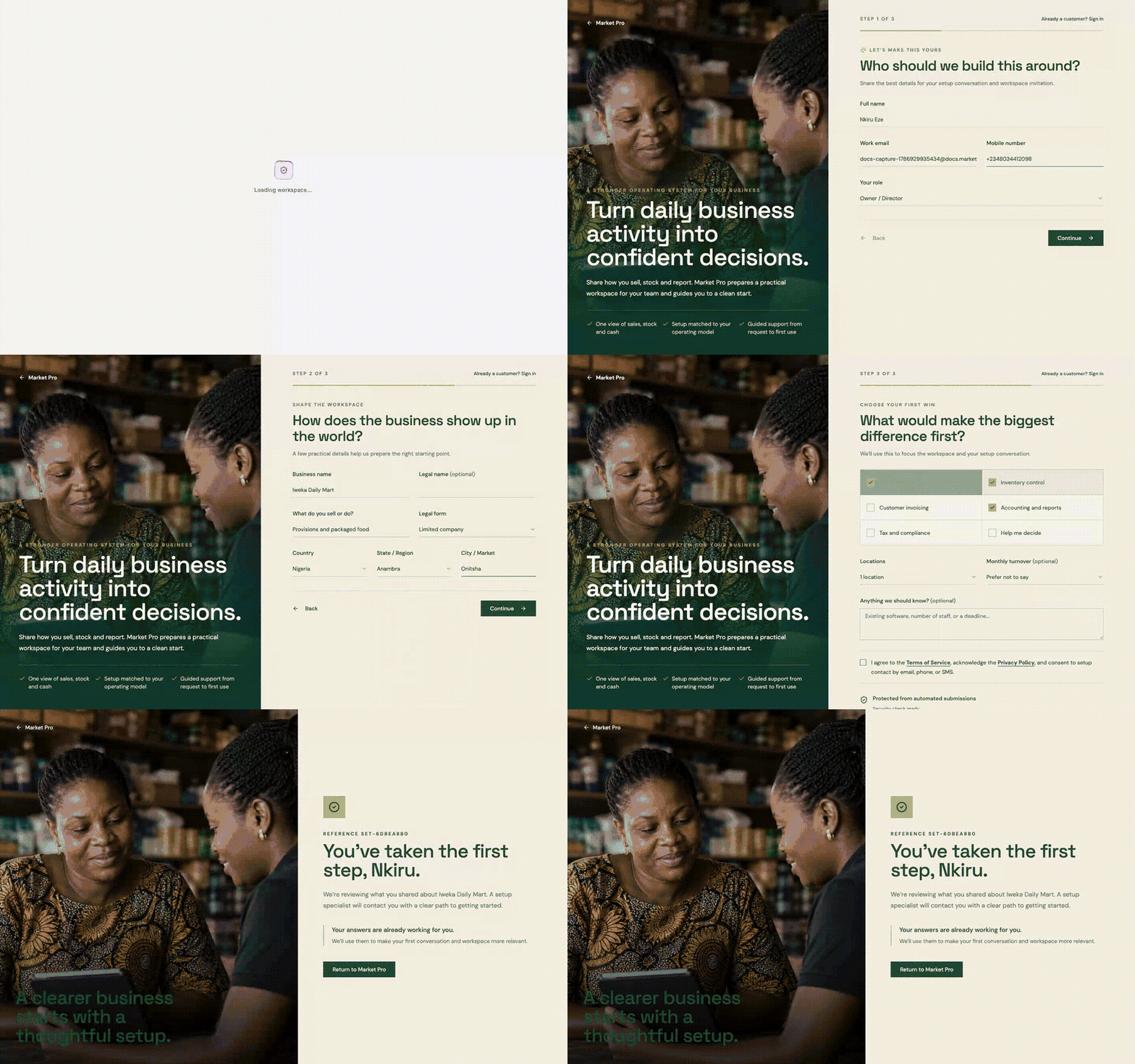
2. Describe the shop
Enter the trading name, what you sell, state, and city. What you sell can be lace, parts, provisions, or anything else. Pick Nigeria, then the state the shop sits in. Press Continue.

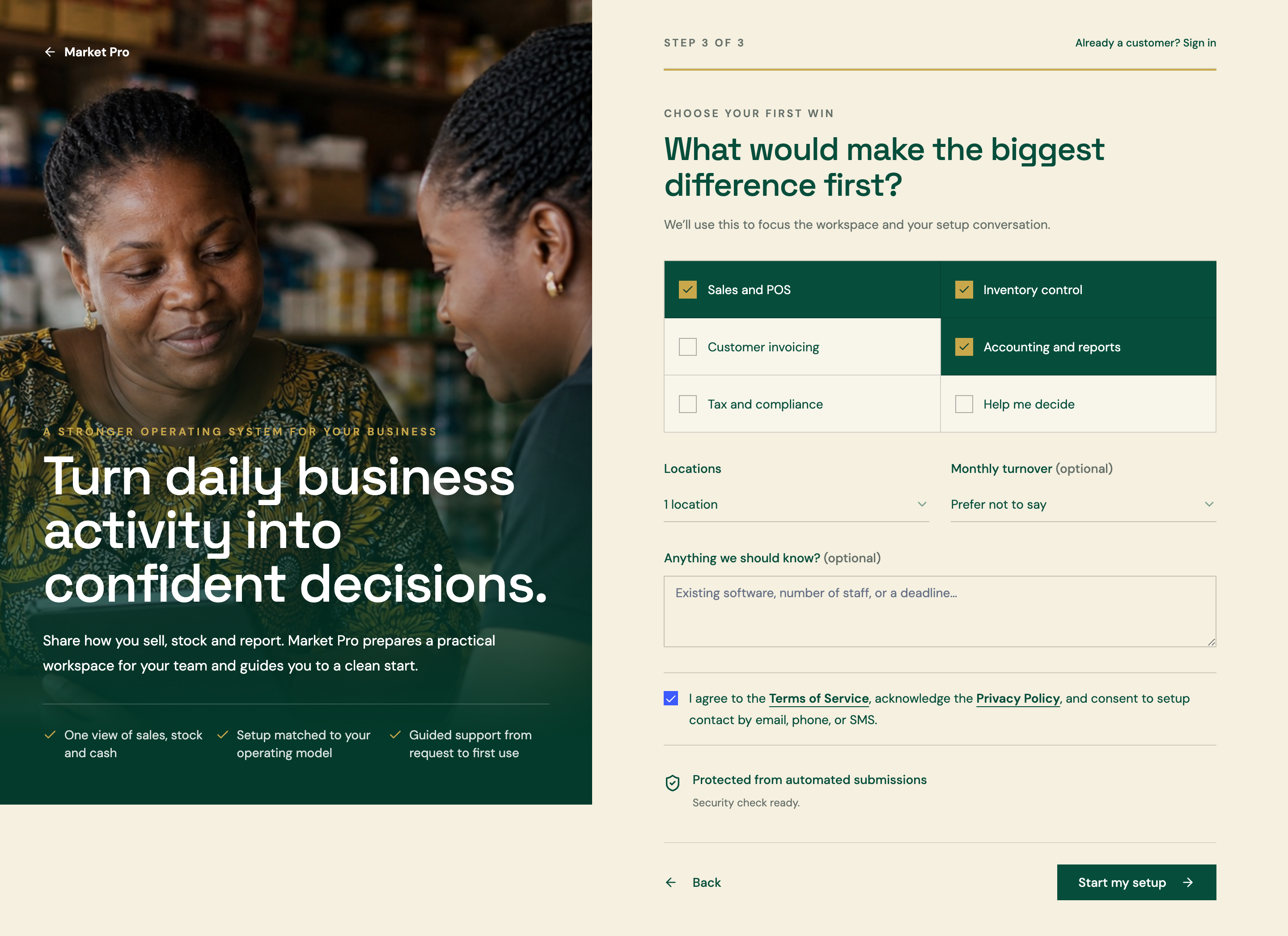
3. Pick goals and send the request
Select Sales and POS, Inventory control, and Accounting and reports if you will sell and keep books. Tick the terms box. Press Start my setup once.
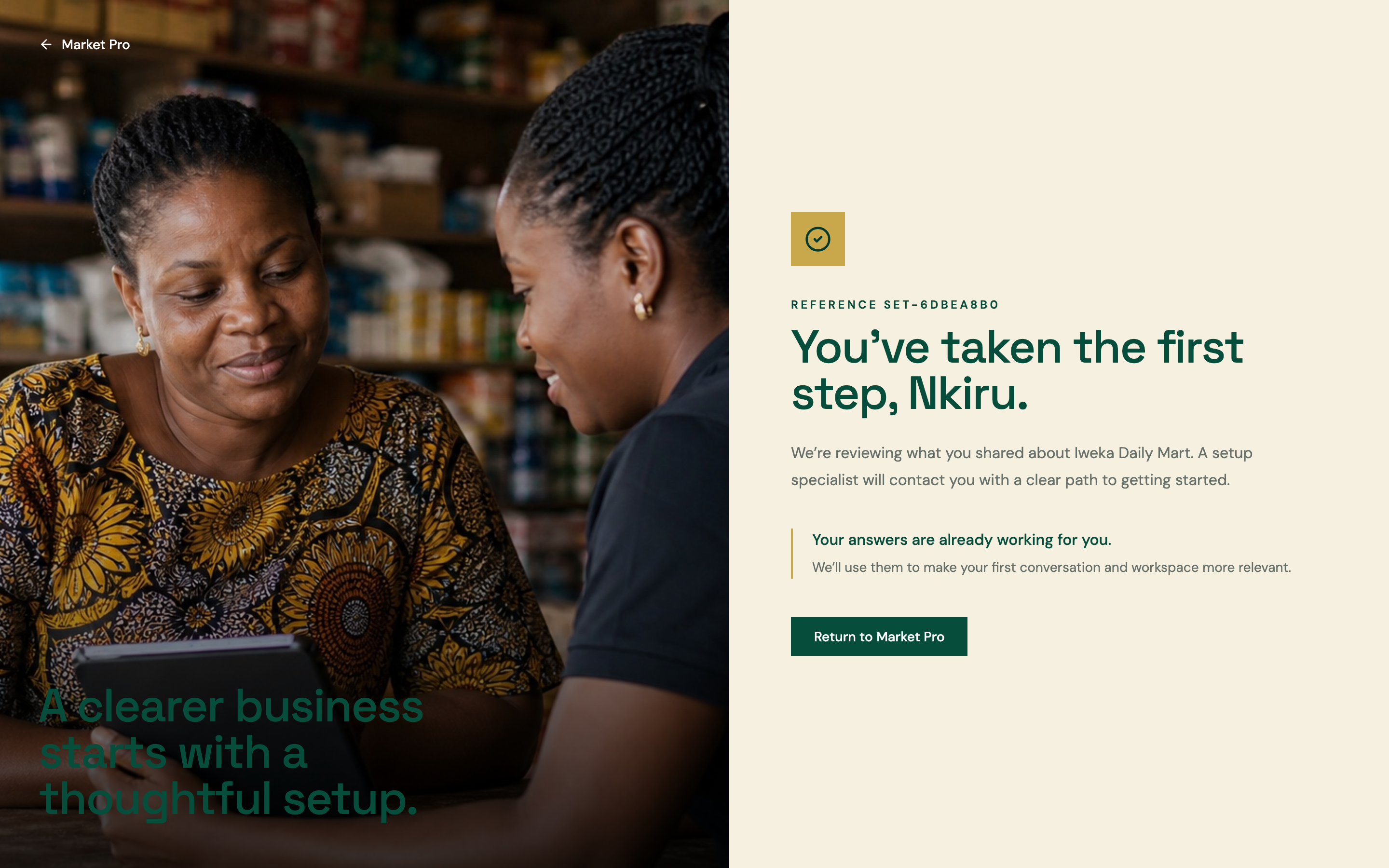
4. Read the confirmation
Write down the SET reference. When the password arrives, open Sign in with that same email. Guided setup is the next screen.
What done looks like
- The page gives you a SET reference and says someone will contact you.
- You sign in later with that same email, then open Guided setup.
Common mistakes
- Do not submit twice with two emails for the same shop.
- Use the same email when you sign in later.